A booking page is a promise to your members
A link to an online booking page may look small, yet it often decides whether someone books right away or sends your team a message. Before sharing it, make clear what can be booked, who it is for and who can actually deliver every booking.
This checklist is for personal trainers, studio owners and gyms offering bookings through the FITsociety app or their own online portal. The aim is not to display every option. It is to create a dependable route to the right place.
1. Decide what someone can book here
Start with one clear answer: is this for a trial class, group class, individual session or several appointment types? If you show more than one, group them in a way a new member understands. Nobody should have to guess whether a slot is for an intake, a small-group class or an existing client.
2. Make the offer recognisable
Use a name, short explanation and duration that fit the class or appointment. Include only the practical information needed to choose: who it is for, when it happens and what to bring. Your website can do the longer selling; the booking route should reduce uncertainty.
3. Set coach and location availability before people book
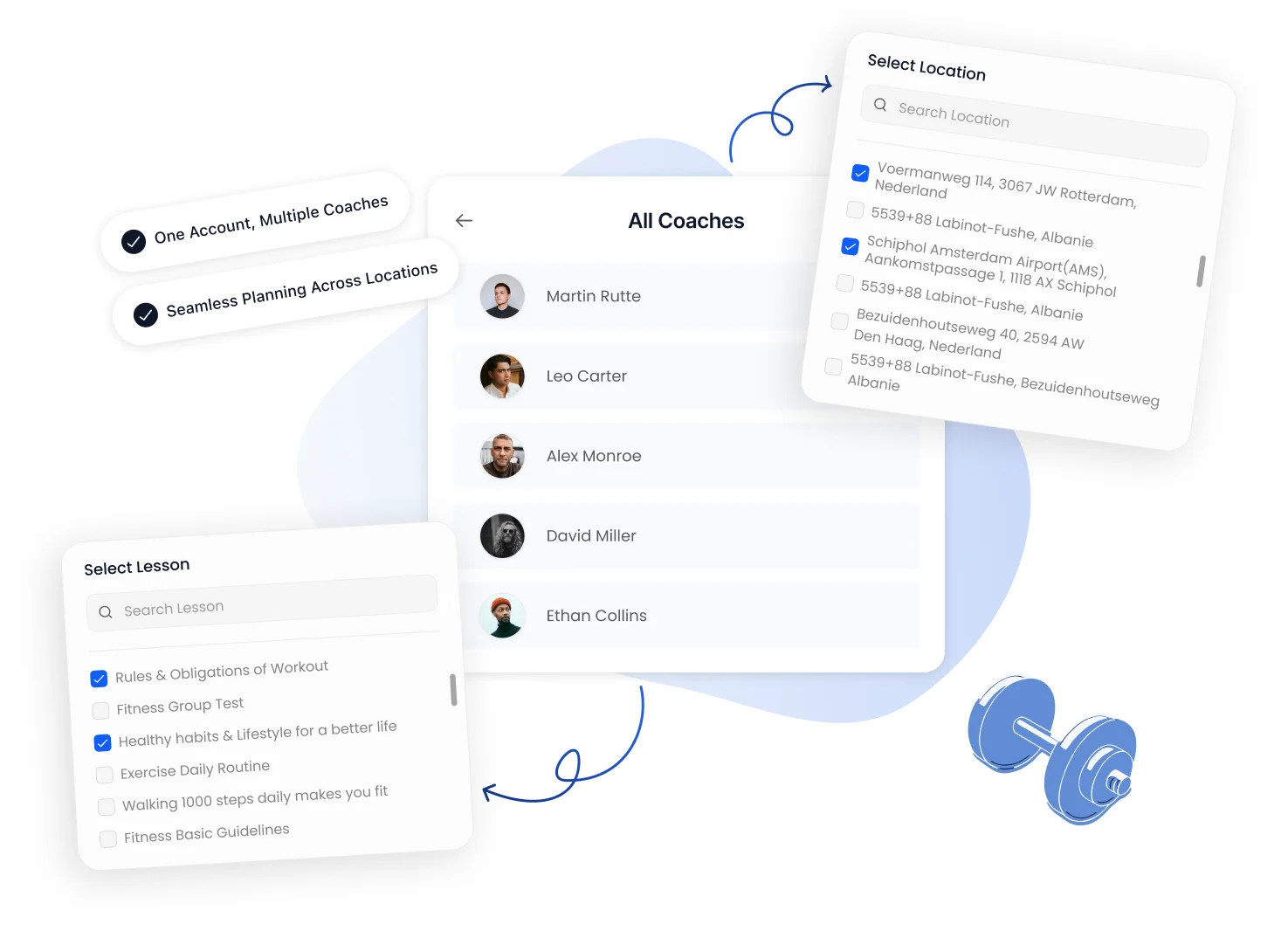
For individual coaching, a slot should only be bookable when the relevant availability has been configured. Decide for each offer whether the coach, the location or both should lead. A session with a personal trainer in a specific studio often needs both checks. An online appointment usually depends mainly on a coach being available.
Make that decision in your calendar, then test one realistic booking. It prevents you from sharing a good-looking slot that your team or space cannot provide.
4. Choose one clear route: app, own portal or website
Members can book in the FITsociety app. You can also use your own online portal and direct people there from your website. Choose the shortest route for each audience and describe it consistently. Existing members may only need the app; someone new usually needs context on your website before going to the portal.
5. Explain booking and cancellation rules before questions start
State when somebody can book and what happens when plans change. This keeps your team out of ad-hoc message threads. Use the policy you already operate; do not invent exceptions on the page.
6. Confirm what happens after a booking
Members want to know: am I booked, where do I go and what happens next? Make the confirmation use the same language as the page. Keep it factual and do not promise an automatic next step you have not configured.
7. Test the page before sharing it widely
Walk through one route on a mobile phone as an owner or coach. Check that the offer is recognisable, a suitable slot is visible and the next step is clear. Then ask one regular member to repeat the test. Five minutes of testing beats a week of manual explanations.
Practical tool: your launch checklist
Write down: what can be booked; who this route serves; whether availability comes from coach, location or both; whether people use the app or portal; where the policy lives; what the confirmation says; and who checks the route weekly.
Frequently asked questions
Do members always have to book through the app?
No. Members can use the FITsociety app and you can also use your own online portal. Pick the route you can explain consistently to that audience.
Can coach and location both be part of a booking?
Yes, when your offer needs that. Configure the relevant availability first and test a real route before sharing it widely.
What is the best place to start?
Start with one offer for one audience. A clear route for trial classes or existing members is better than a page trying to do everything at once.
Make online booking part of daily operations
Explore class booking software, personal training software or gym software, or book a demo to discuss the best route for your business.