A Zoom integration for fitness connects a booking calendar to video sessions. A client books a class or appointment, and the Zoom link goes with the booking. No manual link sending. This guide covers how that connection works, what to set up in Zoom, how calendar sync fits in, and where FITsociety sits in an online coaching workflow.
TL;DR
- A fitness Zoom integration attaches a Zoom Meeting link to each booked class, small-group session or one-to-one appointment.
- Zoom also offers its own scheduling tool with booking links for one-on-one, group and collective sessions.
- Calendar sync (Google, Microsoft 365) keeps bookings, availability and Zoom links in one place for coaches and teams.
- FITsociety offers Google Calendar and Outlook/Microsoft 365 integrations, a public API and MCP support. Confirm Zoom-specific connection options with FITsociety before building a workflow around them.
- Audio, waiting room and screen-sharing settings matter as much as the integration itself.
What a Zoom integration does for a fitness business
Three jobs. Each one removes a manual step.
- Link creation: a booking generates a Zoom Meeting. The coach does not paste a link into an email.
- Link delivery: the client receives the link in the confirmation, the reminder and the calendar event.
- Schedule accuracy: changes and cancellations update in one place, not in three.
Without an integration, the usual flow is manual. Coach creates a meeting. Coach copies the link. Coach sends it by message or email. Client loses it. Coach sends it again. At 5 sessions a week this is tolerable. At 30 sessions across several coaches it is a daily source of errors.
Which sessions benefit most
| Session type | Zoom use | Integration value |
|---|---|---|
| Online PT, one-to-one | Live form correction, check-in calls | Unique link per booking, automatic reminders |
| Small-group sessions | Shared video room, 3 to 12 clients | Same link for all attendees, capacity control |
| Group classes | Live streamed class | Recurring link per class series |
| Consultations and intake calls | First conversation, goal setting | Booking link on website, calendar placement |
| Progress reviews | Screen share of measurements and plan | Scheduled slot tied to the client record |
Three ways to connect Zoom to coaching
No single method fits every business. The choice depends on team size, booking volume and how much of the client record lives in one system.
1. Zoom’s own scheduling
Zoom’s scheduling product provides a booking link. It supports collective, one-on-one and group sessions and integrates with Google, Microsoft 365 and Apple iCloud calendars. As of the latest published information, standalone Zoom Scheduler pricing starts at 4.99 USD per user per month, and it is often included in Zoom Workplace Business plans.
Strengths: low cost, no extra system for the video part. Limits: bookings stay separate from client intake, training plans, nutrition, progress tracking, memberships and payments. The coach then reconciles two or three tools.

2. A fitness platform with a built-in Zoom connection
Some gym and studio platforms connect directly to a Zoom account. The coach signs in to Zoom from the platform’s integration settings, and sessions marked as online receive a Zoom link. Class names, times and attendee lists flow from the platform to Zoom. This keeps booking, payment and attendance in one record.
Before choosing any platform on this basis, check three points on its official integration page:
- Which Zoom account types are supported.
- Whether links are created per booking or per class series.
- Whether cancellations and reschedules update the Zoom meeting.
3. Calendar-based connection
Both Zoom and most coaching platforms sync with Google Calendar and Microsoft 365. A booking lands on the coach’s calendar. Zoom syncs meetings with third-party calendars, so the coach can start or join from the Zoom desktop app. With bidirectional sync, meetings created or updated on either side update across integrated applications.

This route works when no direct connection exists. It needs discipline: one calendar as the source of truth, and a rule on who creates the meeting.
Where FITsociety fits
FITsociety is community-driven fitness software for personal trainers, online coaches, fitness studios and gyms. It is developed with feedback from fitness professionals. Feedback informs development, and not every request is built.
Relevant parts for a Zoom-based workflow:
- Booking calendar: group classes, small-group sessions, one-to-one appointments and online PT.
- Calendar integrations: Google Calendar and Microsoft Outlook/Microsoft 365.
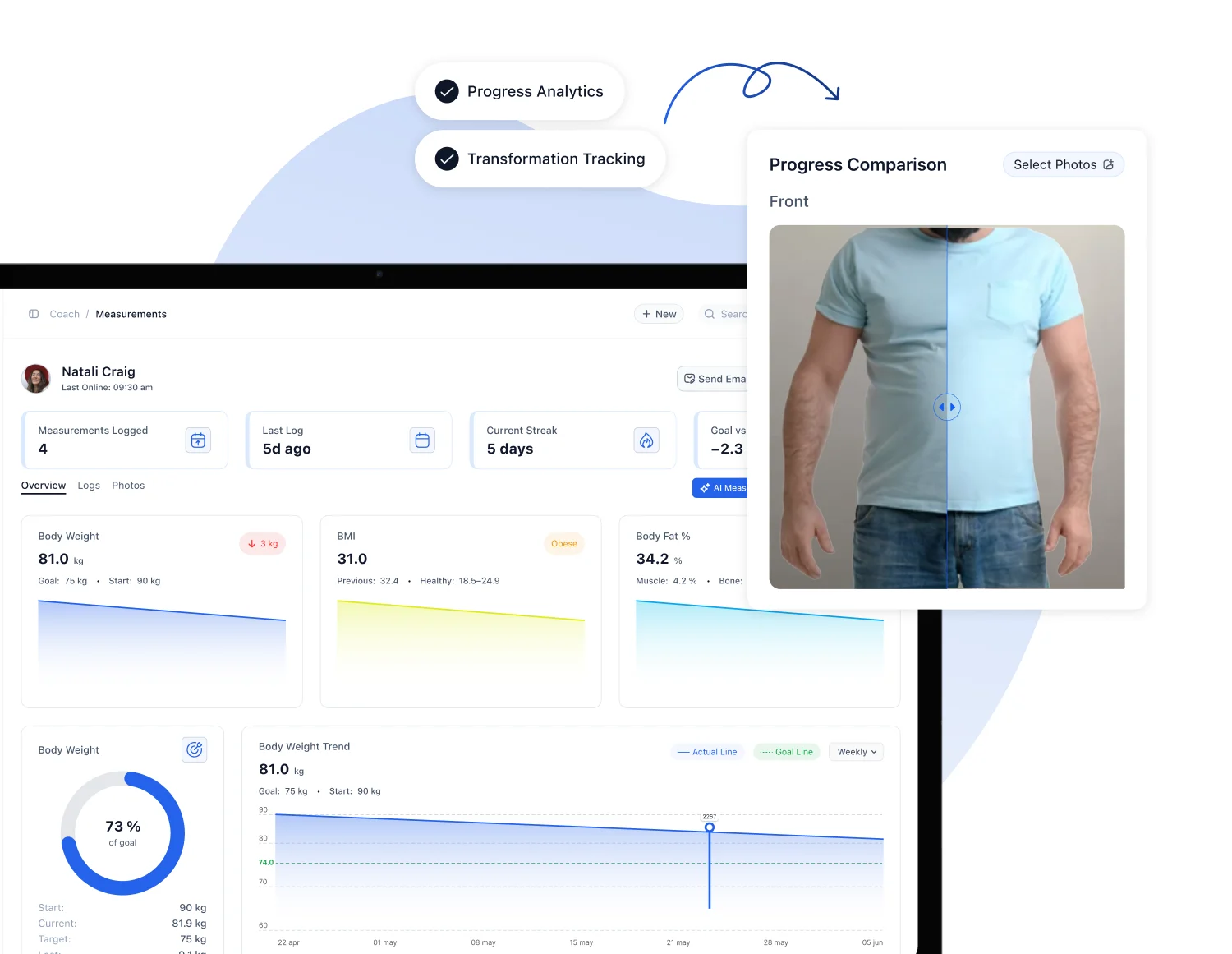
- Client record: intake forms, check-ups, training and nutrition plans, progress tracking.
- Operations: communication, memberships and payments.
- Access: coaches use a dashboard. Clients use a portal and mobile apps.
- Connected workflows: a public API and MCP support are available.
One point stays open. A native Zoom connection is not part of the confirmed integration list in this article. A team that needs automatic Zoom links should ask FITsociety which options apply to its plan, and whether the API or calendar sync covers the use case. Setup steps and plan access should be verified before a rollout.
Coordinating coaches and teams
For solo coaches the calendar is simple. For teams it is the hard part. Typical coordination needs:
- Each coach has separate availability.
- Group classes have a capacity and an assigned instructor.
- Online and in-person slots do not overlap for the same person.
- Cancellations free a spot for the next client.
- Coaches see client history before the session starts.
A calendar tied to the client record answers the last point. The coach opens the booking and sees the plan, the latest check-up and the progress data. The Zoom call then starts with context, not with questions the client already answered in a form.
Setting up Zoom for fitness sessions
Integration handles scheduling. Session quality depends on Zoom settings. The points below come from Zoom’s own guidance on hosting workouts, published May 15, 2020. The interface may have changed since, so check current menus in Zoom.
Meeting type
Use Zoom Meetings, not Webinars. Meetings allow two-way interaction. Coaching and form correction need the coach to see the client and the client to see the coach.
Access and security
- Enable the Waiting Room to control who enters.
- Disable participant screen sharing.
- Admit clients individually for one-to-one sessions.
- Use a unique link per booking where the platform allows it.
Audio
Music is the common failure. Zoom’s noise suppression compresses audio, so music sounds distorted. Turn on Original Sound in audio settings when playing music. Test with a second device before the first class.
Video and cueing
- Use active speaker view so the instructor stays in focus.
- Greet clients by name as they join. Open the room about 10 minutes early.
- Give shorter, simpler cues than in person. Many clients watch on a phone or tablet.
- Position the camera so the full movement is visible, not only the upper body.
Pre-session checklist
Copy this into a team document.
Coach side
- [ ] Booking exists in the calendar, with the Zoom link attached
- [ ] Waiting Room on, screen sharing off
- [ ] Original Sound on if music plays
- [ ] Camera angle shows the full movement
- [ ] Client plan and last check-up open
- [ ] Room opened 10 minutes early
Client side (send with the confirmation)
- [ ] Space cleared, about two arm lengths on each side
- [ ] Device propped at a stable angle
- [ ] Equipment ready
- [ ] Link tested a day before for first-time clients
- [ ] Medical or injury notes updated in the intake form
Group classes vs. one-to-one: different setups
| Factor | One-to-one online PT | Small group | Group class |
|---|---|---|---|
| Typical size | 1 client | 2 to 12 | 10 and up |
| Link | Per booking | Per session | Per class series |
| Entry control | Waiting Room, admit one | Waiting Room, admit by roster | Waiting Room, roster check |
| Coach focus | Form detail | Mixed, spotlight rotation | Cueing and pacing |
| Booking rules | Availability slots | Capacity and minimums | Capacity and waitlist |
A coach who runs all three needs a calendar that handles slots, capacity and recurring series. That is the reason many coaches outgrow a plain booking link.
Evaluating any Zoom integration: criteria
Use this list when comparing tools by type: scheduling add-ons, studio platforms, coaching platforms.
- Link automation: created at booking, not by hand.
- Change handling: reschedules and cancellations update the meeting.
- Calendar sync: Google and Microsoft 365 both supported, with clear direction of sync.
- Client context: booking connected to forms, plans, progress.
- Payments and memberships: a booking can require a payment or draw from a package.
- Team controls: coach-level availability, roles, locations.
- Extensibility: API access for custom steps.
- Plan access: the integration is included in the plan you will actually buy.
A tool that only generates links solves point 1. A coaching platform solves several points together, at higher cost.
FITsociety plans
FITsociety publishes three plans, shown on the official site as of September 11, 2026:
| Plan | Price |
|---|---|
| Coach | €179 per month |
| Team | €289 per month |
| Club | €489 per month |
Coach suits independent trainers. Team and Club suit studios, coaching teams and multi-location operators. Features by plan, including calendar and API access, should be confirmed on fitsociety.io before purchase. The platform covers booking, client management, plans, progress tracking, memberships and payments in one environment, so a Zoom-based session sits next to the client record instead of in a separate tool.
Using the API and MCP for Zoom workflows
When a direct connection is not available, a public API allows custom steps: for example, reading new bookings and creating a meeting in a video tool. MCP support points to connected, AI-assisted workflows. Details to verify before building:
- Available endpoints and supported actions.
- Permissions and authentication.
- Compatible tools.
- Plan access.
Custom builds need a developer or a no-code automation tool. For small studios, calendar sync plus a recurring Zoom link is often enough.
Common problems and fixes
| Problem | Likely cause | Fix |
|---|---|---|
| Client cannot find the link | Link only in one email | Put it in the calendar event and the reminder |
| Duplicate meetings | Two systems both create meetings | Choose one creator |
| Music sounds robotic | Noise suppression active | Enable Original Sound |
| Uninvited guests | Public link, no Waiting Room | Waiting Room on, unique links |
| Coach double-booked | Separate calendars | Sync to one calendar |
| Time zone confusion | Manual time entry | Use booking with automatic time zone adjustment |
Zoom’s scheduling tools adjust time zones automatically, which helps online coaches with clients in several regions.
Responsibility
Software schedules and records. Coaches decide on programming, form corrections and client suitability. Remote sessions limit what a coach can see and control, so intake forms and check-ups should capture injuries and conditions before the first call. Clients with medical concerns should consult their physician.
FAQ
Does FITsociety have a Zoom integration?
Confirmed integrations are Google Calendar and Microsoft Outlook/Microsoft 365, plus a public API and MCP support. A native Zoom connection is not confirmed here. Ask FITsociety which Zoom options apply to your plan before relying on one.
Can I run online PT and group classes on Zoom?
Yes. Use Zoom Meetings, not Webinars, so coach and clients can interact. Enable the Waiting Room and disable participant screen sharing. Match the link type to the session: per booking for one-to-one, per series for classes.
Is Zoom’s own scheduler enough for a fitness business?
For basic booking, often yes. Standalone pricing starts at 4.99 USD per user per month according to Zoom. It does not replace intake forms, plans, progress tracking, memberships or payments, so coaches who need those usually add a coaching platform.
How do I stop music from sounding distorted on Zoom?
Turn on Original Sound in Zoom’s audio settings before playing music. Zoom’s default noise suppression compresses audio and makes music sound robotic. Test with a second device before a live class.
Sources
- Zoom scheduling software
- Zoom: easy online scheduling for small businesses
- Zoom Support: using calendar and contacts integration
- Zoom Support: bidirectional calendar sync
- Zoom: best practices for hosting workouts over Zoom