You can switch fitness software with minimal member churn if you follow a structured, pre-load-first migration playbook. Most migrations typically take several weeks depending on your roster size and how many integrations you’re untangling. Done right, with clients pre-loaded before you announce anything, a suitable platform can be live for your team without a rocky transition period.
TL;DR:
- Most fitness software migrations require several weeks, with larger organizations needing six to twelve weeks for comprehensive testing and staff training.
- Key signs indicating it’s time to switch include support delays, integration errors, member complaints, and growth demands like class capacity or branding needs.
- Pre-loading client accounts, programs, and billing silently before announcing the switch prevents member cancellations due to gaps between promise and delivery.
- Cancel old subscriptions and activate new billing on the same day to avoid confusion, errors, and support tickets, with post-launch read-only access serving as a safety net.
- Running a detailed validation during the first month ensures payments, program content, and calendar sync are accurate, and most fixes involve small manual adjustments.
What Signals Mean It’s Time to Switch Fitness Platforms?
Software rarely fails all at once. It erodes in small, specific ways until the cost of staying outweighs the friction of leaving.
Watch for these operational red flags first. Support tickets that take days instead of hours. Integrations that used to work now throwing errors. Members complaining about a clunky check-in flow or a checkout that fails during busy hours. Price increases that arrive without new functionality attached. Any one of these alone might be tolerable. Two or three together usually mean you’ve outgrown the tool, a pattern WellnessLiving’s rundown of switching signs documents in detail, from missing branded apps to weak marketing tools.
Growth creates its own pressure. If you’re capping class sizes because your booking calendar can’t handle demand, or you’re turning away group training requests because your current system only handles one-on-one scheduling, that’s a business signal, not just a technical one. Wanting a white-label app to match your brand is another common trigger for studios scaling past a single location.
Timing matters as much as the decision itself. LegitFit’s guidance on switch timing points to quieter months, late spring into early summer, before the September membership surge hits. Larger organizations should budget a longer runway, six to twelve weeks, to cover full testing and staff training.
Before you commit to a start date, run this three-item check:
- Measure your current member count, active subscriptions, and program library size.
- Back up every export you can pull from your existing system, even ones you don’t think you’ll need.
- Nominate an owner who is accountable for the entire migration from day one to go-live.
The Week-by-Week Migration Playbook
A migration is a sequence, not a single event. Treat it like a relationship project with a technical checklist attached, not the reverse.
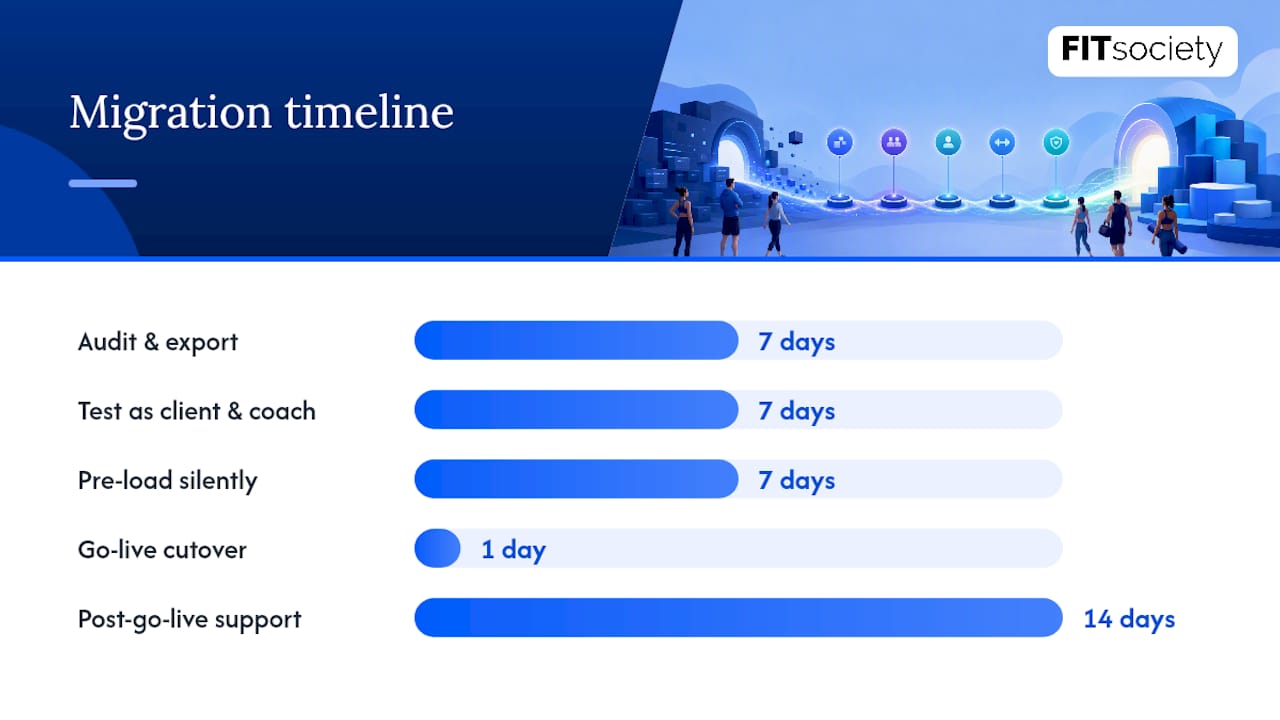
- Days 1 to 7: audit and export. Pull your client roster, program library, and billing history as CSV files. Choose your migration owner now, one person accountable for every step, not a committee.
- Days 7 to 14: test as both roles. Your migration owner runs a full dry cycle inside the new platform: book a class as a client, log in as a coach, process a test payment, confirm a check-in, and verify calendar sync actually pulls sessions into Google Calendar or Outlook.
- Days 14 to 21: pre-load silently. Create client accounts in the new system with programs and billing already configured, but do not charge anyone yet. Nobody outside your team should know the switch is happening at this stage.
- Go-live day: announce and cut over. Send a short coach video explaining the change, cancel old billing and activate new billing on the same calendar day, and share the install link immediately after.
- Days 1 to 14 post-go-live: watch and support. Keep the old system in read-only mode, reach out personally to your highest-value clients, and triage support tickets as they come in rather than batching them.
The choreography matters more than the tools. A practitioner playbook on switching coaching platforms documents a 21-day sequence that hit zero client loss by pre-loading accounts before any announcement went out, and that same source notes coaches who skip this step and announce first, migrate second, commonly lose 10 to 20% of their roster during the transition.
Why does the order matter so much? Because the moment you tell members “we’re switching,” you’ve started a clock. If their account, program, and billing aren’t ready the instant they open the new app, you’ve created a gap between promise and delivery. That gap is where cancellations happen. Pre-loading closes it before it opens.
The test-run phase deserves more attention than most coaches give it. Running through the new platform as a client surfaces problems you’d never catch as an administrator, things like a confusing booking flow, a check-in reminder that fires at the wrong time, or a payment form that doesn’t render correctly on mobile. Catch those in week two, not on go-live day when members are watching.
Billing cutover is the single highest-risk moment in the entire sequence. Cancel the old subscription and start the new one on the same day, ideally within the same morning, so there’s no ambiguity about what a member is being charged for. A gap of even 48 hours between canceling old billing and activating new billing invites confusion, duplicate charges, or missed payments that snowball into support tickets.
The read-only window after go-live isn’t optional busywork. It’s insurance. Mid-cycle invoices, historical check-in data, and edge-case client questions all surface in the first two weeks after launch, and having the old system available (even if nobody can act inside it anymore) means you’re not scrambling to answer a question with no record to check.
Pro Tip: Record the coach announcement video before go-live day, not the morning of. A rushed, unscripted video reads as uncertainty to your members. A calm, 60-second explanation filmed a few days early reads as confidence.
How Do You Migrate Client Data and Billing Without Disputes?
Data migration fails most often not because the export is hard, but because nobody checks the export against what actually needs to survive the move.
Four exports are non-negotiable:
- Client roster: full name, email, phone number, and original start date for every active member.
- Active subscriptions: plan type, billing frequency, and renewal date for each account.
- Payment history: at minimum the last 12 months, so you can answer any billing question a member raises.
- Program library and check-in history: your training programs plus at least 90 days of check-in records, so progress data doesn’t vanish on cutover.
Format details trip people up more than the export itself. Confirm which CSV fields your new platform expects before you export from the old one, mismatched column headers are a common source of failed imports. Exercise names rarely match one-to-one between systems: “Barbell Back Squat” in one platform might be “BB Squat” in another. Case studies on app-switching cleanup work suggest budgeting two to four hours for this kind of manual normalization on a typical roster, plus time to confirm that photos, videos, and PDF attachments carried over intact rather than becoming broken links.
Billing choreography is where disputes originate if you rush it. Cancel old subscriptions the same morning you activate new billing, and tell clients the exact date and exact amount they’ll be charged before it happens, not after. Ambiguity is what generates support tickets, not the switch itself.
Even in carefully run migrations, expect roughly 5 to 10% of accounts to hit some kind of edge case, a missed payment method, a partial history gap, a subscription that renewed on an odd date. Budget time for manual fixes rather than treating every edge case as a system failure.
Verification is the step coaches skip when they’re exhausted from the move itself. Reconcile every charge against your export before calling billing “done.” Confirm calendar sync is pulling sessions correctly into Google Calendar or Outlook/Microsoft 365, since a silent sync failure won’t show up until a client misses a session. Spot-check your top 20 clients by hand, because if anything went wrong, it usually shows up there first.
Training Staff and Communicating With Members
Your staff needs to be confident before your members ever see the new app. Confidence doesn’t come from a memo, it comes from practice.
Run an internal test day where every front-desk staffer logs in, books a session, and processes a check-in themselves. Give them a one-page cheat-sheet for the five questions members ask most (“Where’s my program?” “How do I pay?” “Why can’t I log in?”). Role-play the awkward conversations before they happen live at the desk.
Member communication follows a fixed sequence, and skipping steps is what creates panic:
- Pre-load silently: accounts exist before anyone is told anything.
- Coach video: a short, personal explanation of what’s changing and why.
- Install link: sent immediately after the video, while attention is still high.
- Reminder text: a short follow-up 48 hours later for anyone who hasn’t installed yet.
- Personal follow-up: a direct call or message to your highest-value clients, not a mass email.
The video script barely needs more than three lines: what’s changing, why it’s better for them, and exactly what to click next. The front-desk script should be just as short: “We’ve moved to a new app, here’s your login, I’ll wait while you install it.” An SMS check-in template can be as simple as, “Quick check, did the new app install okay? Reply here if not.”
Pro Tip: Track three numbers in week one: installation rate, login rate, and support tickets per 100 members. If installation is high but logins lag, the problem is usually a password or onboarding step, not the migration itself.
Post-Migration Checklist: What to Verify and Expect
The first 30 days after go-live tell you whether the migration actually worked, not the go-live day itself.
Run this validation pass before declaring the project done:
- Payments are reconciled against your pre-migration export, dollar for dollar.
- Program content matches what clients had before, including attachments and check-in history.
- Calendar sync is confirmed working for both coaches and members, not just tested once.
- The old system remains accessible in read-only mode as your safety net.
Watch four numbers through the first month: retention rate against your pre-switch baseline, the percentage of failed payments, support tickets per 100 members, and average time-to-resolution on those tickets. A spike in any one of them points to a specific fix, not a failed migration.
Most fixes at this stage are small: reattaching a payment method, manually copying over an edge-case program that didn’t map cleanly, or booking a five-minute onboarding call for a client who’s still logging into the old app out of habit. Escalate to your migration owner only when the same issue repeats across multiple clients, that’s a system problem, not a one-off.
How FITsociety Supports a Smooth Migration
FITsociety is built with input from working coaches and studios, which means the workflows in this playbook, pre-loading clients, syncing calendars, and managing bookings across formats, are already part of how the platform is designed to run.
The booking calendar handles group classes, small-group sessions, one-to-one appointments, and online PT from a single dashboard, which matters if your old system forced you to juggle separate tools for group and individual scheduling. Calendar integrations with Google Calendar and Outlook/Microsoft 365 keep coach schedules synced without manual double-entry, a detail worth confirming against your specific plan before go-live.
For teams managing role permissions across multiple coaches, or coaches who want to connect their own tools, public API and MCP support exist for building connected workflows around the platform.
Before mapping your migration, review the FITsociety pricing and plans page to size the right tier for your roster, and use the checklist for switching gym software without disruption alongside the implementation checklist as working references during your own move.
Get Started With Fitness Software Built for the Switch
Switching fitness software works best when the platform you’re moving to was shaped by coaches who’ve lived through the same friction you’re trying to avoid. FITsociety is developed with ongoing input from personal trainers, online coaches, and studio owners, so features like group bookings, online PT scheduling, and calendar sync were built around how coaching businesses actually run day to day, not how a generic scheduling tool imagines they run.
If you’re coming out of this playbook ready to move, start by comparing your roster size and team structure against the Coach, Team, and Club plans to find the right fit, then explore the full feature set to map your migration checklist against what’s already built in. And if member growth is your next priority once the migration settles, gym-specific SEO support can help fill the roster you just protected.
Sources
- How to switch fitness coaching platforms without losing clients (2026 Migration Playbook) | Vantage Digital
- When to switch your gym management software | LegitFit
FAQ
What CRM Do Most Gyms Use?
There’s no single dominant CRM across the fitness industry, choice depends heavily on studio size, service mix, and whether the business runs group classes, one-on-one coaching, or both. Look for a platform that combines client management with scheduling and payments rather than a standalone CRM bolted onto separate booking software.
What Is Switch Fitness?
“Switch fitness” typically refers to switching, or migrating, from one fitness or gym management software platform to another. It covers moving client data, billing, programs, and scheduling from an old system into a new one while keeping the business running.
How Much Does FITsociety Cost?
Current pricing is listed on the FITsociety pricing page, including the Coach, Team, and Club plans, with monthly and yearly billing options shown for each. Rates and plan limits can change, so check the live page before budgeting your migration.
What Is the Best Fitness App?
There isn’t one universal “best” app, the right choice depends on whether you’re running group classes, one-on-one coaching, or a hybrid studio, and how much you need built-in scheduling, payments, and calendar sync. Evaluate options against the signals covered above: usability, integrations, branded app availability, and support responsiveness.
How Long Does Switching Fitness Software Take?
Most migrations take roughly three to eight weeks depending on roster size and how many integrations need testing, with industry guidance suggesting around six weeks as a typical end-to-end window. Larger studios with more staff and integrations should budget toward the longer end of that range.