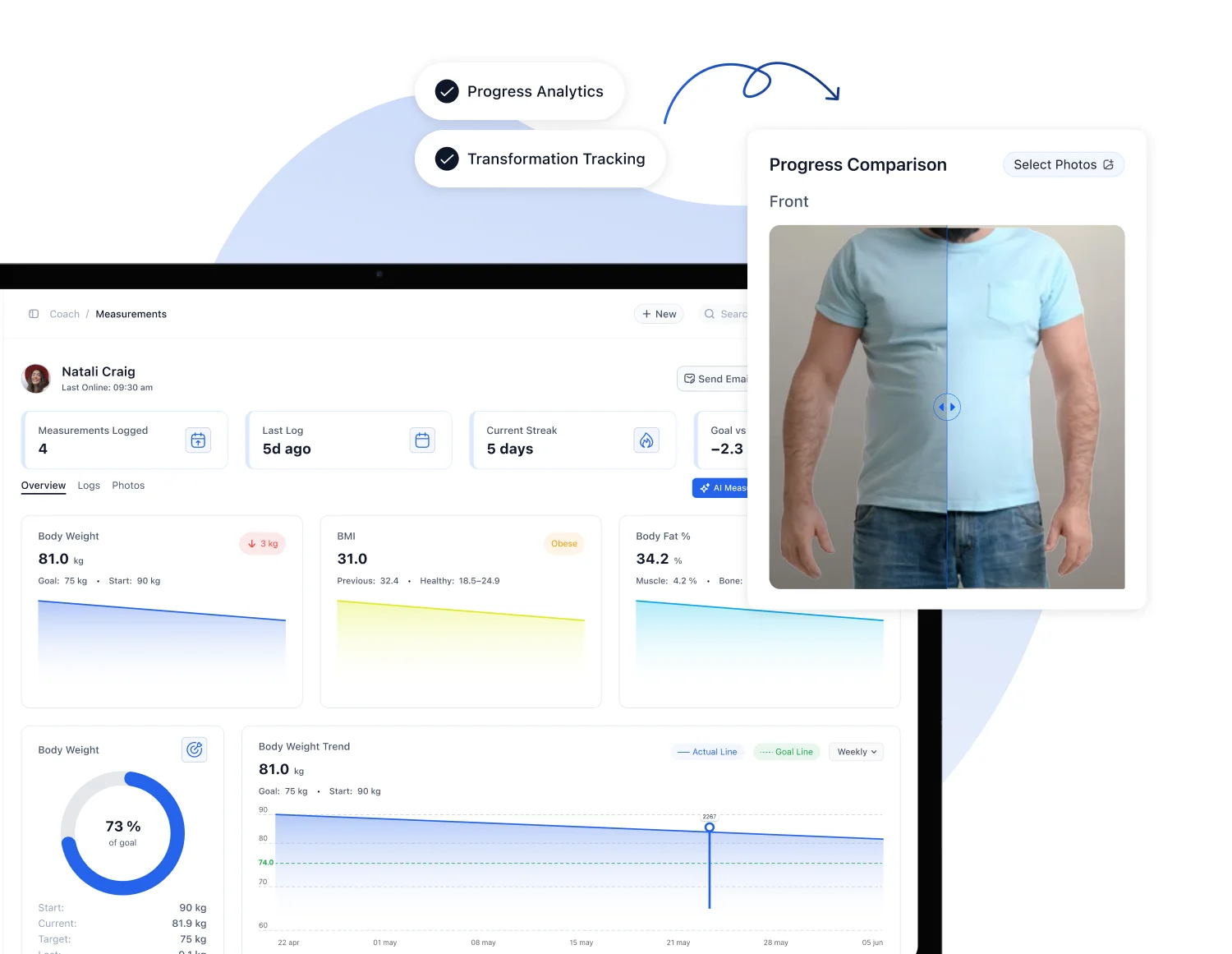
Staff roles and permissions decide who in a coaching business can see client records, edit plans, move bookings and touch payments. The reliable method: define a small set of roles by job, give each role only the access that job needs, assign people to roles instead of tuning access person by person, and review access whenever responsibilities change. FITsociety’s Team plan includes multi-coach support with roles and permissions, so this structure can be built where coaching, bookings and memberships already run.
TL;DR
- Roles are defined by job (coach, front desk, manager, owner). Permissions are the specific actions a role may take.
- Start with the least access that lets the job get done. Add more only when a specific action is blocked.
- Group sensitive access separately: client health data, payments and exports.
- Review access when someone joins, changes role or leaves, and on a fixed schedule.
- On FITsociety, multi-coach roles and permissions are part of the Team plan (€289 per month) and the Club plan (€489 per month).
Roles vs. permissions
A permission is one allowed action: view a client’s plan, cancel a session, export a member list.
A role is a named bundle of permissions tied to a job: head coach, front desk, studio manager.
Role-based access control works by assigning privileges to roles and users to roles, so users receive permissions only through the roles they hold. Custom access for each person is avoided.
Why this matters in a fitness business:
- Client records include body measurements, check-in forms and sometimes health notes.
- Membership and payment data affects revenue.
- Calendars are shared by coaches, front desk and managers, so one wrong cancellation affects many clients.
- Staff turnover is routine: part-time coaches, seasonal instructors, new locations.
With roles, onboarding a new coach means assigning one role. Offboarding means removing it.
Principle: least privilege
The guiding rule is least privilege: give people only the access they need to do their job. The New Zealand National Cyber Security Centre recommends assigning permissions to roles rather than individuals. It also says that when in doubt, grant less access and test it, adding permissions later only if a specific action is blocked.
Microsoft’s guidance on role-based access describes least privilege as the permission needed, over a specific scope, for a specific time. It adds that custom roles make sense when built-in roles are too broad or too narrow for a job function.
In a coaching business, “scope” usually means one of these:
- Own clients only vs. all clients
- One location vs. all locations
- View only vs. edit
- Everyday tasks vs. money and export tasks
Step 1: List the jobs, not the people
Start from the work. Write down what actually happens each week:
- Onboarding new clients and sending intake forms
- Building and adjusting training and nutrition plans
- Reviewing progress and measurements
- Running group classes and small-group sessions
- Booking and moving one-to-one and online PT appointments
- Selling and managing memberships
- Handling payments and refunds
- Managing staff, schedules and locations
Then group tasks into roles. Most coaching businesses need four to six:
- Owner: everything, including billing and staff management.
- Manager: staff, schedules, memberships, reporting.
- Coach: own clients, plans, progress, own calendar.
- Front desk or support: bookings, member questions, check-ins.
- Part-time or substitute coach: class and session access only.
- Read-only: reporting or review access.
A solo trainer with an assistant often needs only two roles. A multi-location club needs location scope added to each.
Step 2: Build a role matrix
A role matrix is a table of roles against access areas. It is the single document that answers “who can do what.” The Dutch National Cyber Security Centre advises defining which systems and data each employee needs through a rights matrix.
Template to copy. Fill each cell with None, Own, All, View, or Edit.
| Access area | Owner | Manager | Coach | Front desk | Part-time coach |
|---|---|---|---|---|---|
| Client records and intake forms | All, edit | All, edit | Own, edit | View basics | Own, view |
| Training and nutrition plans | All, edit | All, edit | Own, edit | None | Own, view |
| Progress and measurements | All, view | All, view | Own, edit | None | Own, view |
| Own calendar | Edit | Edit | Edit | View | Edit |
| Other staff calendars | Edit | Edit | View | Edit | None |
| Create, move, cancel bookings | All | All | Own | All | Own classes |
| Memberships and subscriptions | Edit | Edit | View | View | None |
| Payments and refunds | Edit | Edit | None | None | None |
| Data export | Yes | Yes | No | No | No |
| Staff management | Yes | Limited | No | No | No |
| Location scope | All | Assigned | Assigned | Assigned | Assigned |
The values are a starting point. Adjust to the business, then keep the matrix with the rest of the operations documents.
Checklist for a first pass:
- [ ] Every role has a one-line job description.
- [ ] No role has payments and export access unless the job requires it.
- [ ] Coaches see their own clients by default.
- [ ] Owner access is held by as few people as possible.
- [ ] Each person has a personal login, never a shared one.
That last point comes from the Dutch guidance too: use personal accounts rather than shared generic ones, so actions can be traced to one person.
Step 3: Set access for client data
Client records are the most sensitive area. Body data, health questionnaires and progress photos belong to the client, and the business is responsible for who sees them.
Practical rules:
- A coach sees the clients assigned to that coach. Reassign clients when a coach leaves, rather than widening access.
- Front desk sees contact details and booking status, not progress reviews or health forms.
- Managers get view access to progress for quality review. Edit access stays with the assigned coach.
- Export of client lists is a separate permission. Exports move all contact data out of the system in one step, so it belongs to the owner and a trusted manager.
FITsociety is software for coaching. Coaches remain responsible for their coaching decisions and for who in their business may see client information.
Step 4: Set access for bookings and calendars
Bookings are where roles collide. A group class involves an instructor, a front desk that handles sign-ups and a manager who sets the schedule. A one-to-one session involves a single coach and a client.
Separate these actions when designing roles:
- See own calendar. Every coach.
- See other staff calendars. Front desk, managers, and coaches who cover for each other.
- Create and reschedule bookings. Coach for own sessions; front desk for all.
- Cancel bookings. Narrower than rescheduling in many studios, since cancellations can trigger refunds or lost class spots.
- Set availability and services. Coach for own availability; manager for classes, rooms and resources.
By session type:
| Session type | Who typically books | Who typically edits |
|---|---|---|
| One-to-one in person | Coach, front desk | Assigned coach |
| Online PT | Coach, client | Assigned coach |
| Small group | Coach, front desk | Lead coach, manager |
| Group class | Front desk, client | Manager |
FITsociety’s booking calendar covers group classes, small-group sessions, one-to-one appointments and online PT in one place. Google Calendar and Microsoft Outlook/Microsoft 365 integrations are available, so coaches can keep external calendars aligned with their coaching schedule. Coach availability for member bookings is documented in the help article on setting coach availability for member bookings. Confirm exact sync behavior and plan access in the help center before relying on it for a rollout.
Step 5: Set access for memberships and payments
Money access should be the narrowest in the matrix.
- Owners and one or two managers handle refunds, price changes and subscription changes.
- Coaches can see whether a client’s membership is active. They do not need billing controls.
- Front desk can answer “is this member current?” without editing payment details.
- Any bulk operation (mass price change, bulk export, bulk cancellation) is limited to the owner role.
A useful test for each payment permission: if this person made a mistake, how many clients would it affect, and could it be undone? Anything with high reach and no undo belongs with the owner.
Step 6: Handle multiple coaches and locations
Solo coaches rarely need more than an owner role. The need appears when a second coach, an assistant or a front desk person joins.
How the FITsociety plans line up:
| Plan | Price | Coaches | Roles and permissions |
|---|---|---|---|
| Coach | €179 per month | 2 | Not part of the plan |
| Team | €289 per month | 10 | Multi-coach with roles and permissions |
| Club | €489 per month | Unlimited | Multi-coach with roles and permissions, plus multi-location management |
The Team plan also lists up to 600 members. The plan details are published on the FITsociety pricing page and can change, so confirm them there before choosing.
For multi-location operators, add location as a dimension of every role. A coach at one site sees that site’s clients and calendar. A regional manager sees several. Only the owner sees everything.

Step 7: Review, update and remove access
Permissions drift. A coach becomes a manager and keeps old access. A temporary cover coach is never removed. The Dutch NCSC advises adjusting access rights when someone takes a new role or leaves, setting up processes for people joining, moving and leaving, and deleting unused accounts.
A simple routine:
Joiner
- Assign the role on day one, nothing extra.
- Confirm the person has a personal login.
Mover
- Remove old permissions, not only add new ones.
- Reassign clients and classes that move with the role.
Leaver
- Remove access on the last day, or sooner for an involuntary exit.
- Reassign clients and upcoming sessions to a named coach.
- Notify affected clients through the usual communication channel.
Scheduled review
- Open the role matrix and compare it with the actual staff list.
- Check who holds owner, export and payment access.
- Do it at least once a year, and whenever the team changes in a meaningful way.
Temporary needs, such as a substitute covering a month of classes, are best handled by assigning the narrow role and setting a calendar reminder to remove it.
Common mistakes
- One role for everyone. Every coach ends up with billing access.
- Shared logins. Nobody can tell who canceled the class.
- Permissions by person. Ten staff members produce ten different setups nobody can explain.
- Widening access to fix a blocked task. Check first whether the task belongs to that role.
- Forgetting departed staff. Old accounts stay active for months.
- No written matrix. Access is learned by habit, not documented.
FITsociety for team access
FITsociety connects client administration, intake forms, training and nutrition plans, progress tracking, bookings, communication, memberships and payments in one environment. Coaches work in a dashboard. Clients use a portal and mobile apps. For teams, the Team plan (€289 per month) includes multi-coach with roles and permissions, and the Club plan (€489 per month) adds unlimited coaches and multi-location management. A public API and MCP support are available for connected coaching workflows. The product is developed with input from its community of fitness professionals.
See FITsociety for current plans and features.
FAQ
What is the difference between a role and a permission?
A permission is a single allowed action, such as viewing a plan or canceling a booking. A role is a named group of permissions for a job, such as coach or front desk. Staff are assigned to roles, and the role carries the permissions.
How many roles does a small studio need?
Usually three to five: owner, manager, coach, front desk and, if relevant, a part-time or substitute coach. Add roles only when a job clearly needs different access. Too many roles are hard to maintain.
Should coaches see all clients?
By default, no. Least privilege means a coach sees assigned clients. When coaches cover for each other, grant the access for that period and remove it afterward, rather than opening all records permanently.
How often should staff access be reviewed?
Immediately when someone changes role or leaves, and on a regular schedule in between. Review owner, export and payment access most often. Reviewing the full matrix at least once a year is a reasonable minimum.
Do roles and permissions come with every FITsociety plan?
Multi-coach with roles and permissions is listed on the Team and Club plans. The Coach plan, with 2 coaches, does not list it. Check the pricing page for the current plan details.
Sources
- Principle of least privilege, New Zealand National Cyber Security Centre
- Basic principle 4: Limit access to data and services, Dutch National Cyber Security Centre
- Best practices for Microsoft Entra roles, Microsoft Learn
- Role-Based Access Control (RBAC) Implementation Guide, IBM