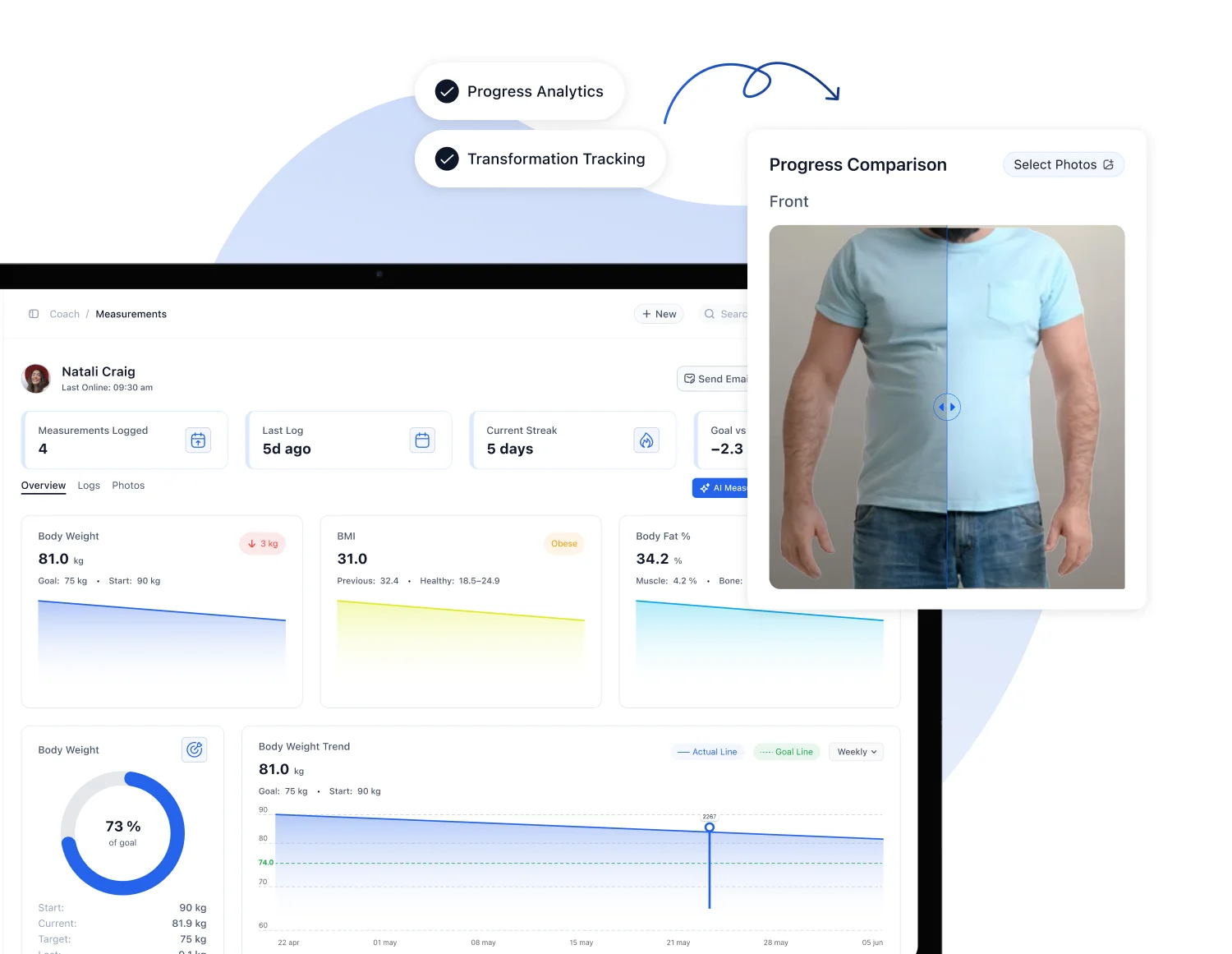
A booking calendar on a trainer or studio website has one job: turn a visit into a confirmed session without a message thread. Two placements do this: an embedded calendar that stays on your page, and a Book Now button that opens a booking page. FITsociety is community-driven fitness software with a booking calendar for group classes, small-group sessions, one-to-one appointments and online PT, so the calendar, the client record, memberships and payments sit in one system. That is the setup this guide assumes.
TL;DR
- Embedded calendar: visitors book inside your page. Button or link: visitors leave for a separate booking page.
- Set availability, capacity and booking rules before placing anything on the website.
- Connect Google Calendar or Outlook/Microsoft 365 so personal events block bookable time.
- Test on a phone, in a private browser window, with one real booking.
- FITsociety plans: Coach €179 per month, Team €289 per month, Club €489 per month.
Embed, button or link: what each one does
Three placements get called “embedding”. They behave differently.
| Placement | What the visitor sees | Best for |
|---|---|---|
| Embedded calendar or class schedule | Calendar inside your page, no navigation away | Class timetable pages, a main “Book” page |
| Website booking button | Button that opens the booking page or a pop-up | Header menu, hero section, social bio links |
| Plain link | Text link to a separate booking page | Emails, messages, captions |
Booking software documentation draws the same line: a link or button forwards visitors to a separate booking page, while an embedded option keeps the calendar within the business website.
Practical rule:
- Put the embedded calendar on one dedicated page, such as “Book a session” or “Class schedule”.
- Put a button on every other page, pointing to that page.
- Use a link wherever you cannot place code: emails, DMs, Instagram.
That gives one booking path and several entry points. Each extra calendar copy on a different page adds another thing to check after every change.
Decide what the calendar must show
Before any code goes on the site, decide what visitors book. Fitness businesses usually run a mix.
One-to-one sessions and online PT
- Visitor picks a service, then a time slot.
- Slots come from the coach’s availability, not from a fixed timetable.
- Online PT sessions need a location label, such as video call, so the confirmation is clear.
Group classes and small-group sessions
- Visitor sees a timetable of fixed sessions.
- Each session has a capacity. Small-group sessions often cap at 3 to 6 people; classes at the room’s limit.
- The calendar should show spots left or a full state.
Team and multi-coach schedules
- Each coach owns their availability.
- A studio shows one schedule across coaches, or one per coach.
- Coaches need to see each other’s bookings alongside their client coaching, so nobody is scheduled twice.
FITsociety’s booking calendar covers group classes, small-group sessions, one-to-one appointments and online PT, and is built to coordinate individual coaches and teams in the same dashboard where they coach clients. Clients use a portal and mobile apps for their side.
Set up before you embed
A calendar placed on the website exposes every setting behind it. Fix these first.
1. Coach availability
Availability defines when a session can be booked. In FITsociety, the steps are in the help article on setting coach availability for member bookings. Work through it per coach.
What to decide:
- Weekly working hours per coach.
- Time off and holidays.
- Gaps between sessions for travel, changeover or notes.
- Whether online PT uses the same hours as in-person sessions.
Where it goes wrong: hours entered for the whole business instead of per person, so a coach appears bookable while on leave.
2. Session types and durations
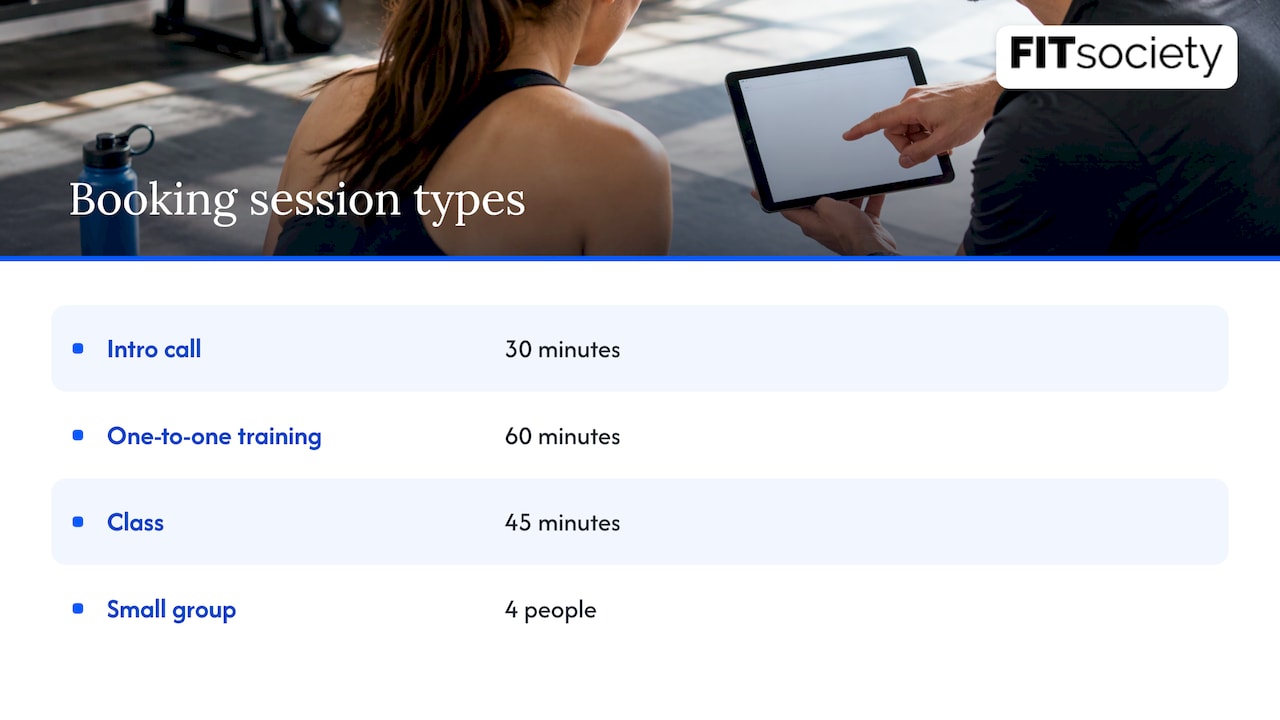
Create one type per offer: 30-minute intro call, 60-minute one-to-one, 45-minute class, 4-person small group. Name them the way a visitor would read them. “PT 60” means little to a first-time visitor. “One-to-one training, 60 minutes” does.
3. Capacity and booking rules
Rules protect your time and your revenue. Decide:
- Maximum attendees per class or small-group session.
- How far ahead clients can book.
- The latest a client can book or cancel before a session starts.
- Who may book: anyone, existing clients only, or members with an active plan.
The last rule matters for studios. A public calendar that lets anyone book a members-only class creates manual cleanup. Membership and payment data live in the same FITsociety environment as the bookings, which keeps the rule tied to the client record.
4. Staff assignment
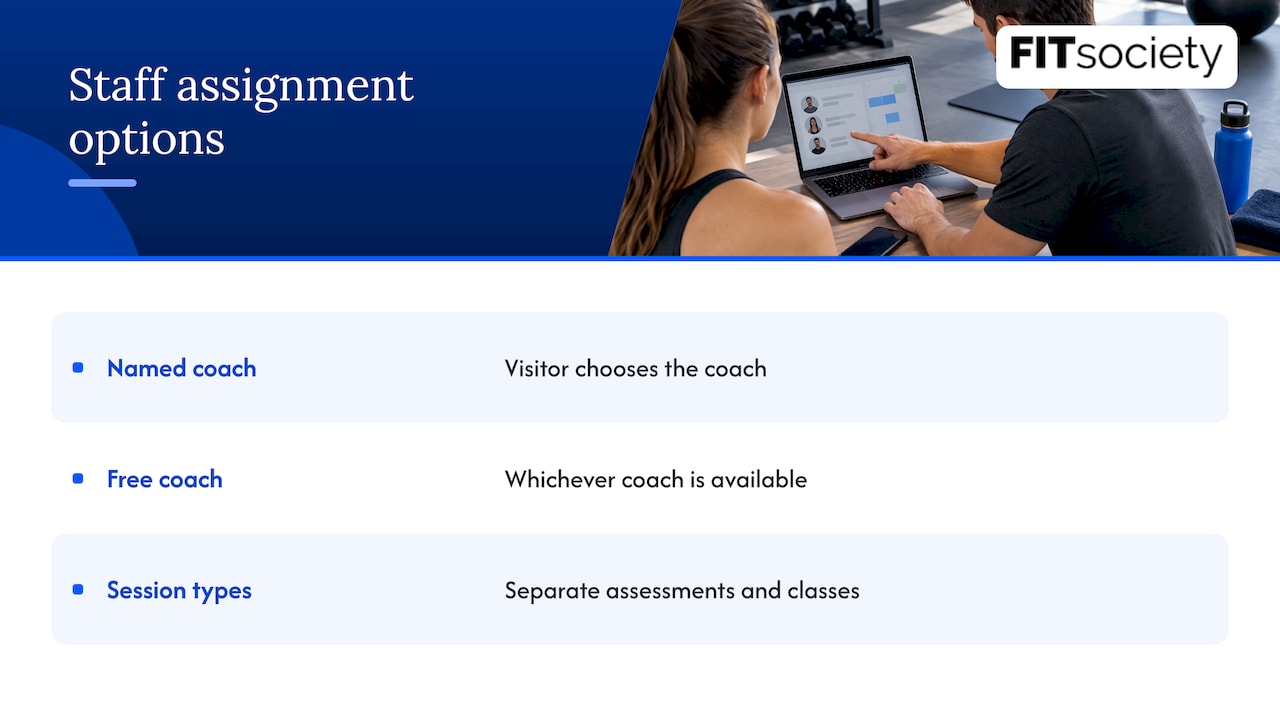
For teams, decide how a booking is assigned: to a named coach chosen by the visitor, or to whichever coach is free. Studios with a head coach for assessments and other coaches for classes should publish different session types for each.
Sync with Google Calendar and Outlook
Double-booking comes from two calendars that do not know about each other: the booking system and the coach’s personal calendar. FITsociety has Google Calendar and Outlook/Microsoft 365 integrations for the booking calendar, so sessions can appear on the calendar a coach already uses.
A sound routine:
- Connect each coach’s own calendar, one account at a time.
- Create a single test booking from the public page.
- Confirm it appears on the coach’s calendar with the right time zone, title and duration.
- Add a personal event on that calendar, such as a dentist appointment, and check that the slot behaves as expected on the booking page.
- Move and cancel the test booking and check both sides update.
- Repeat for every coach before the page goes live.
Time zones need attention for online coaches. A visitor in another zone should see slots in their local time, and the confirmation should state the zone. Check that the coach’s calendar account and the business settings use the zone you intend.
For teams that connect the schedule to other tools, FITsociety offers a public API and MCP support for connected coaching workflows. Confirm the available actions and plan access on the official FITsociety pages before building on them.
Place the calendar on your website
Most website builders (WordPress, Squarespace, Wix, Webflow, Shopify and similar) accept an embed block. The general method is the same everywhere.
Embedding with an iframe
An iframe is an HTML element that embeds another document into the current page. A booking calendar embed is typically an iframe pointing at the booking page of your software. The steps:
- Open the page where the calendar belongs, for example “Book a session”.
- Add a custom code or HTML embed block in the builder.
- Paste the embed code supplied for your booking page.
- Set the width to 100% so it fills the content column.
- Set a generous height so the visitor does not scroll inside a small box. The iframe default height is only 150 pixels, so an unset height clips the calendar.
- Save, publish and open the page in a private window.
Two attributes help. The loading attribute can delay loading an iframe placed lower on the page. The height attribute controls the visible area.
Adding a Book Now button
- Create a button block in the builder.
- Label it with the action: “Book a session”, “View class schedule” or “Book online PT”.
- Point it to your booking page or to the page that holds the embedded calendar.
- Add it to the header menu, the home page hero and each service page.
Use different labels for different intents. A visitor on an online coaching page wants “Book a discovery call”. A visitor on a studio page wants “See classes”.
Embedding a class schedule
A class schedule is a calendar view of fixed sessions. Put it on its own page and keep three things visible:
- Class name and coach.
- Start time and duration.
- Spots left, or a clear full state.
If you run several locations, give each location its own schedule page, or make location a visible label. A visitor who books the wrong site is a no-show.
Check it on mobile
Most booking visits come from phones, since people check a trainer’s site from social links. Test:
- The embed fits the screen width with no horizontal scroll.
- The date picker and time slots are tappable with a thumb.
- The page does not scroll awkwardly inside the frame.
- The button sits above the fold on the home page.
- Confirmation arrives by email after the booking.
FITsociety clients also have mobile apps and a portal, so existing clients can manage sessions there while new visitors use the website.
Troubleshooting display and sync problems
| Problem | Likely cause | Fix |
|---|---|---|
| Calendar is cut off | Iframe height too small | Increase the height; test the longest month view |
| Blank space where calendar should be | Builder strips custom code, or the block is not on the live page | Use the builder’s embed or custom code block; publish; reload in a private window |
| Embed works on desktop, breaks on phone | Fixed pixel width | Set width to 100% |
| Slots shown while a coach is away | Time off not entered, or calendar not connected | Add time off; check the connection for that coach |
| Wrong times for remote clients | Time zone mismatch | Review time zone settings and the confirmation text |
| Visitor cannot book a members-only class | Booking rule limits who may book | Adjust the rule or label the class as members only |
| Old schedule still showing | Page cache | Clear the site cache and reload |
If a single coach has a problem and others do not, the cause is almost always that coach’s availability or calendar connection, not the page.
One booking path for the whole business
The calendar is only the front. What happens after the booking decides whether it helps your business.
- A new visitor books a session, and the client record is created.
- Intake forms and check-ups follow the booking.
- Training and nutrition plans, progress tracking and chat sit in the same dashboard.
- Memberships and payments connect to the same record.
FITsociety is described by its team as community-driven fitness software, actively developed with feedback from fitness professionals. Coaching, group bookings, online PT, memberships and payments run in one environment, and the coach stays responsible for coaching decisions.
Plans
FITsociety lists three plans, based on the published prices:
- Coach: €179 per month
- Team: €289 per month
- Club: €489 per month
Independent trainers usually start with Coach. Studios with several coaches and gyms with multiple locations look at Team and Club. See the FITsociety site for what each plan includes.
Launch checklist
- [ ] Availability set for every coach
- [ ] Session types named clearly, with durations
- [ ] Capacity set for each class and small group
- [ ] Booking and cancellation rules set
- [ ] Google Calendar or Outlook/Microsoft 365 connected per coach
- [ ] Test booking made, moved and cancelled
- [ ] Embedded calendar on one dedicated page
- [ ] Book Now buttons in menu, hero and service pages
- [ ] Tested on a phone and in a private window
- [ ] Confirmation email checked
FAQ
Should I embed the calendar or use a button?
Use both. Embed the calendar on one dedicated booking page, then add buttons across the site pointing to it. Use plain links in emails and social bios. This keeps a single booking path to maintain.
Can I embed a class schedule and let clients book group classes?
Yes, when the booking calendar supports group classes. Publish the schedule on its own page, set a capacity per class, and show spots left. FITsociety’s booking calendar covers group classes and small-group sessions alongside one-to-one appointments and online PT.
How do I prevent double-booking?
Connect each coach’s Google Calendar or Outlook/Microsoft 365 account and keep availability current. Then run a test: add a personal event and confirm the slot behaves as expected on the booking page. Repeat per coach.
Why does my embedded calendar look cut off?
The iframe height is usually too small. The default iframe height is 150 pixels, so set a larger height and a width of 100%, then check on a phone.
Sources
- Adding the booking calendar to your website
- iframe element, MDN Web Docs