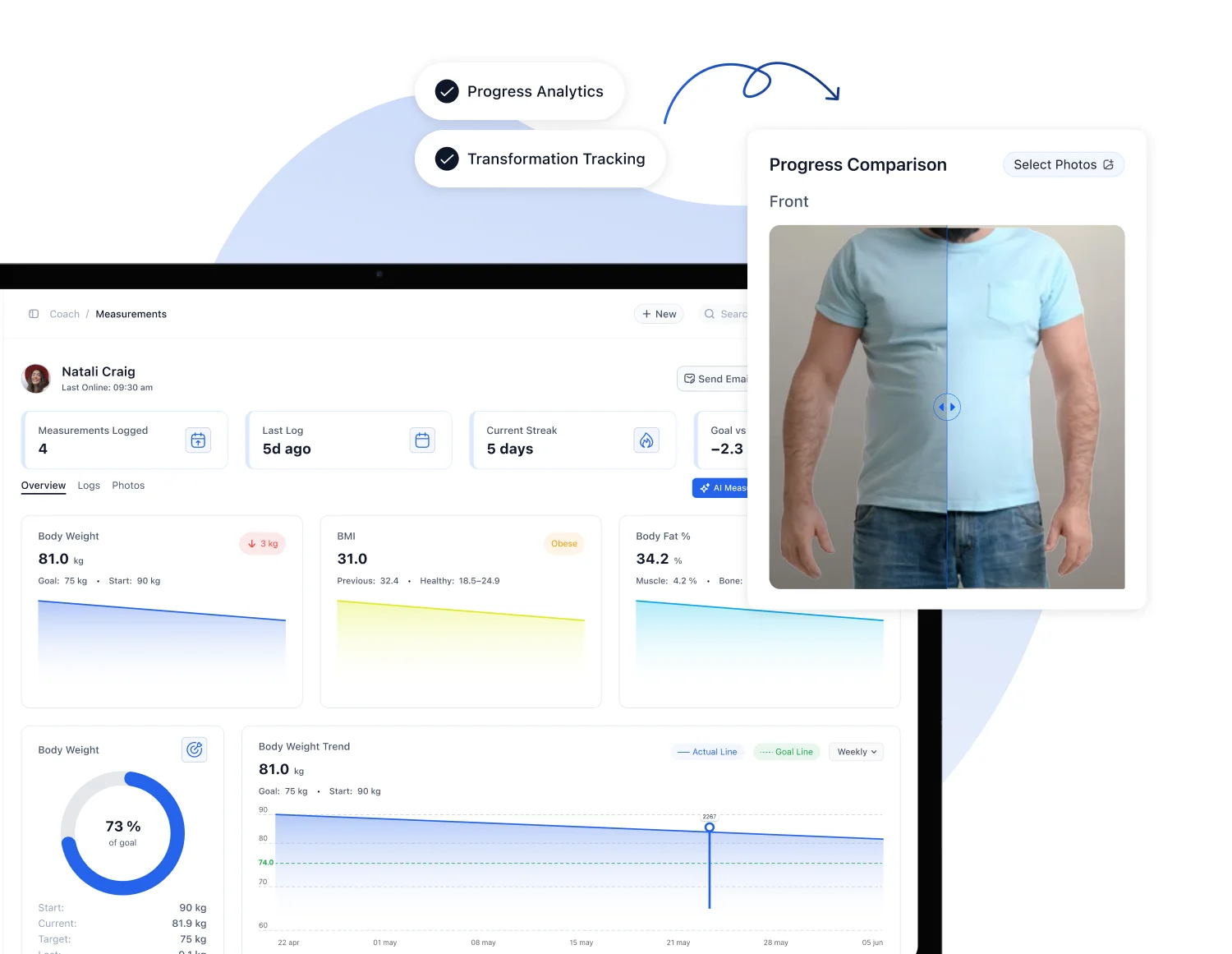
A coaching business dashboard is one screen, or one set of linked screens, that shows clients, sessions, plans, check-ins, messages and payments together. The goal: open it, see what needs attention today, act. No switching between a spreadsheet, a calendar, a chat app and a payment tool.
This guide covers what to put on the dashboard, how to organize it for one-to-one, small-group and online coaching, how teams extend it, and how to keep it useful as client numbers grow. A setup checklist and a weekly review template are included.
TL;DR
- A coaching dashboard centralizes clients, bookings, plans, check-ins, progress and payments in one place.
- Start with four views: today’s sessions, clients needing attention, check-ins due, payments and memberships.
- Calendar sync (Google Calendar, Outlook/Microsoft 365) keeps bookings and personal schedules in one timeline.
- Research on coach dashboards supports user-selected measures and alerts based on each client’s own history.
- FITsociety provides this in one environment for independent coaches, online coaches, studios and gyms.
What a coaching business dashboard is
Definition:
- A working view of the coaching business, not a report built once a quarter.
- Pulls from client records, calendar, plans, forms, messages and billing.
- Answers three questions: who needs me today, what is scheduled, what is unpaid or expiring.
There are three common ways coaches build one:
| Approach | Typical setup | Strength | Limit |
|---|---|---|---|
| Notes and spreadsheet templates | Client list, task board, session log | Cheap, flexible | Manual updates, no client-facing side |
| Generic workspace template | Linked databases for clients, sessions, goals | Customizable layout | Bookings, payments and plans live elsewhere |
| Purpose-built coaching software | Clients, plans, bookings, check-ins and billing in one system | Data is connected, clients get a portal or app | Monthly subscription |
Templates work for a handful of clients. The cost shows up when the same client detail is typed in three places and a missed check-in goes unnoticed. Software built for coaching removes the duplication.
What the research says about coach dashboards
A 2022 co-operative design study of a coach dashboard for training monitoring (Netherlands, academic) produced design principles that carry over to personal trainers and online coaches, even though the study focused on athlete monitoring. Three findings matter:
- Time budget. The dashboard should let coaches review all individual training monitoring for the next session in a maximum of 20 minutes.
- Planned versus experienced. Comparing the load the coach intended with the load the athlete reports helps improve later programming.
- Choice and personal baselines. Coaches should choose which measures they see, and warnings should rest on deviations from that individual’s own historical data, not a generic threshold.
The study also recommends automating data connections such as questionnaires, training logs and wearable integrations, so the picture does not depend on manual entry.
Practical translation for a coaching business:
- Keep the daily view short enough to review between sessions.
- Show what was prescribed next to what the client logged.
- Flag a client when their own pattern changes, for example missed logs after weeks of consistent ones.
- Let each coach hide what they do not use.
Core components of the dashboard
1. Client list and status
- Active, paused, trial and former clients.
- Service type: one-to-one, small group, group class, online PT.
- Next session, last check-in, last message.
- Tags for goals or programs.
2. Today and this week
- Sessions in time order, by location or online.
- Open spots in group sessions and small-group capacity.
- Gaps between bookings.
- Personal calendar events next to client sessions.
3. Intake and onboarding
- Intake forms sent, completed, outstanding.
- Health and readiness questionnaires (the coach decides what to ask and how to act on answers).
- Welcome message and first plan assigned.
4. Plans
- Training plan and nutrition plan per client.
- Plan end dates and clients due for an update.
- Templates for repeatable programs.
5. Check-ins and progress
- Check-ins due, received, overdue.
- Measurements, photos, habit logs, training logs.
- Trend lines per client against their own starting point.
6. Communication
- Unread messages.
- Automated reminders for sessions and check-ins.
- Announcements to a group or a whole membership.
7. Money
- Active memberships and recurring payments.
- Failed or upcoming renewals.
- Session packs and remaining credits.
- Webshop sales of memberships and sessions.
Organizing the dashboard by coaching model
The same components arrange differently depending on how the business delivers coaching.
One-to-one personal training
- Calendar first. Sessions dominate the day.
- Session notes attached to the client record, visible before the appointment starts.
- Pack balances and cancellation handling visible at booking.
Small-group sessions
- Capacity per session with waitlist or open spots.
- Group roster linked to individual client records so plans stay personal.
- Attendance history per client.
Group classes
- Recurring schedule by class type, room and instructor.
- Booking limits and cancellation windows.
- Membership eligibility: which plan includes which class.
Online coaching
- Check-ins and progress reviews outrank the calendar.
- Plan delivery through a client portal or mobile app.
- Time-zone clarity for live online PT sessions.
- Asynchronous messages grouped by client, with unanswered ones surfaced.
Many coaches mix these. A trainer may run two one-to-one slots in the morning, a small group at noon and online reviews in the evening. The dashboard has to show all three in one timeline.
Booking calendar and integrations
Bookings are the part of the dashboard that changes the most hours of the day. The booking calendar in FITsociety covers group classes, small-group sessions, one-to-one appointments and online PT. See the calendar feature page for the current feature description.
FITsociety includes Google Calendar and Microsoft Outlook/Microsoft 365 integrations. According to the FITsociety guide on Google Calendar for coaches, a connected calendar places bookings on the coach’s calendar, sends invites to clients and attaches session details. That guide recommends starting with a single test booking before rolling out to the full schedule.
What to check after connecting a calendar:
- A new booking appears on the external calendar.
- A rescheduled booking updates the existing event and does not create a duplicate.
- A cancellation removes the event.
- Personal events block availability as intended.
- Client invites show the correct time zone.
Exact sync behavior and plan availability should be confirmed on official FITsociety pages before relying on them for a live schedule.
Public API and MCP
FITsociety offers a public API and MCP support for connected coaching workflows. For coaches with a developer or an automation setup, this allows the dashboard to exchange data with other tools. Supported actions, permissions, compatible tools and plan access should be confirmed in the official documentation before building on them.
Teams, studios and multiple locations
A solo coach scans one list. A team needs the dashboard to answer different questions by role.
| Role | Needs on the dashboard |
|---|---|
| Coach | Own clients, own sessions, check-ins due, messages |
| Front desk or manager | All bookings, class capacity, memberships, payments |
| Studio owner | Active members, renewals, staff schedules, revenue |
| Multi-location operator | Same views filtered by location, shared templates |
Coordination rules that prevent most team problems:
- One source of truth for bookings. Every booking, whoever makes it, lands in the same calendar.
- Clear client ownership. Each client has a primary coach; others can see notes if the studio allows it.
- Shared templates. Intake forms, plan templates and reminder messages are built once and reused.
- Defined handoffs. When a client changes coach or location, plan, history and notes go with them.
- Role-based access. Staff see what their job requires, nothing more.
FITsociety is designed for individual coaches and teams to coordinate bookings alongside client coaching, with memberships and payments in the same environment.
Setting up the dashboard: checklist
- List services. One-to-one, small group, class, online PT, membership, pack.
- Set availability. Working hours, buffers between sessions, group capacity.
- Connect the calendar. Google Calendar or Outlook/Microsoft 365, then test with one booking.
- Build the intake form. Goals, schedule, experience, injuries or limitations for the coach to review, consent as the business requires.
- Create plan templates. Two or three training templates and one nutrition template to start.
- Define the check-in rhythm. Weekly or biweekly, same questions each time.
- Turn on reminders. Sessions and check-ins.
- Configure payments. Recurring memberships, packs, single sessions.
- Import clients. Names, contacts, active plans, balances.
- Invite clients. Portal or mobile app, with a short explanation of what to do there.
Start small. Two views done well beat ten widgets nobody opens.
A weekly review routine
A dashboard only helps if it is used on a schedule. A 20-minute weekly review, in line with the time budget from the research above:
| Step | Minutes | Question |
|---|---|---|
| Clients needing attention | 5 | Who missed logs, check-ins or sessions? |
| Plans due | 4 | Which plans end or stall this week? |
| Schedule | 4 | Are groups full, are there gaps, any conflicts? |
| Money | 4 | Failed payments, upcoming renewals, unused packs? |
| Messages | 3 | Anything unanswered over 24 hours? |
Write one next action per flagged client. Clear the list before the next review.
Check-in and progress template
Use the same structure for every client so trends are comparable. Adjust to the coaching model.
Weekly check-in
- Training completed versus planned (sessions, key lifts or activities)
- Perceived effort, 1 to 10
- Sleep, energy, stress, 1 to 5 each
- Nutrition adherence, 1 to 5
- Habit completion (water, steps, protein, or the client’s chosen habits)
- One win, one obstacle
- Question for the coach
Monthly progress review
- Measurements and photos if the client has agreed
- Performance changes against the starting point
- Plan changes and the reason for each
- Goal for the next four weeks
The planned-versus-experienced comparison from the research maps directly onto the first two lines of the weekly form. Coaches remain responsible for how they interpret answers and adjust programming.
Keeping the dashboard useful as the business grows
- Review which views you open. Remove or hide the rest. The research supports letting coaches choose their measures.
- Use personal baselines. Flag a client against their own history, not an arbitrary standard.
- Standardize before hiring. Templates, naming and tags should exist before the second coach joins.
- Automate the repetitive work. Reminders, check-in requests, payment retries.
- Add team views at the right moment. Shared calendars and role access matter once two or more people book the same clients or rooms.
- Audit quarterly. Inactive clients archived, expired plans closed, templates updated.
AI can help with drafting. CoachAI in FITsociety supports tasks such as drafting training plans, forms, recipes and news. The coach reviews and edits every draft before it reaches a client.
Choosing software for the dashboard
Criteria that matter for a coaching business:
- Bookings, plans, check-ins and payments in one record per client.
- Support for the service types actually sold: classes, small groups, one-to-one, online.
- Calendar integration with the tools the coach already uses.
- Client portal and mobile apps.
- Team features: staff roles, memberships, multiple locations.
- An API for custom workflows.
- A product that keeps improving with feedback from working professionals.
FITsociety is community-driven fitness software. It is developed with input from fitness professionals, and practical needs and feedback shape ongoing improvements. That does not mean every request is built, and no release schedule is implied.
FITsociety plans

FITsociety connects client and member administration, intake forms, training and nutrition plans, progress tracking, bookings, communication, memberships and payments. Coaches work in a dashboard; clients use a portal and mobile apps.
Published plans:
| Plan | Price |
|---|---|
| Coach | €179 per month |
| Team | €289 per month |
| Club | €489 per month |
Feature details per plan are listed on the official site. Start at FITsociety to review the plans and see the dashboard.
FAQ
What should a coaching business dashboard show first?
Today’s sessions, clients who need attention, check-ins due, and payments or renewals at risk. Everything else can sit one click deeper. The goal is a quick daily scan, not a full report.
Is a spreadsheet or template enough for a coaching dashboard?
For a few clients, yes. As soon as bookings, payments and plans live in different places, manual updates cause missed check-ins and double entries. Purpose-built coaching software keeps those records connected and gives clients a portal or app.
Can the dashboard sync with Google Calendar or Outlook?
FITsociety includes Google Calendar and Microsoft Outlook/Microsoft 365 integrations. Test with one booking first, then check reschedules and cancellations. Confirm exact sync behavior and plan availability on official FITsociety pages.
How do teams use one dashboard across several coaches or locations?
Bookings share one calendar, each client has a primary coach, and templates are shared. Role-based views give coaches, managers and owners what they need. Larger operators filter the same views by location.
Does the dashboard replace coaching decisions?
No. Software organizes data and automates admin tasks. Coaches interpret the data, make programming decisions and stay responsible for them.
Sources
- Co-Operative Design of a Coach Dashboard for Training Monitoring (PMC, 2022)
- Google Calendar for coaches: OAuth, sync tokens, and no code booking setup (FITsociety)